Unity Animator Usage Guide
1) Humanoid Avatar Setup
- Compatibility:
The provided character is built on the Mixamo-based Humanoid bone structure, ensuring seamless compatibility with Unity's Humanoid Avatar system. - FBX Import Settings:
- Go to the Rig tab -> Set Animation Type to Humanoid. Unity will automatically recognize the bone mapping. - Animation Sharing:
The generated Avatar can share animations with other Humanoid characters. Your existing animations (Mixamo, Asset Store, etc.) can also be applied directly. - T-Pose Fix:
If using an animation that starts with a T-Pose, set the Start Frame to 2 and click Apply.
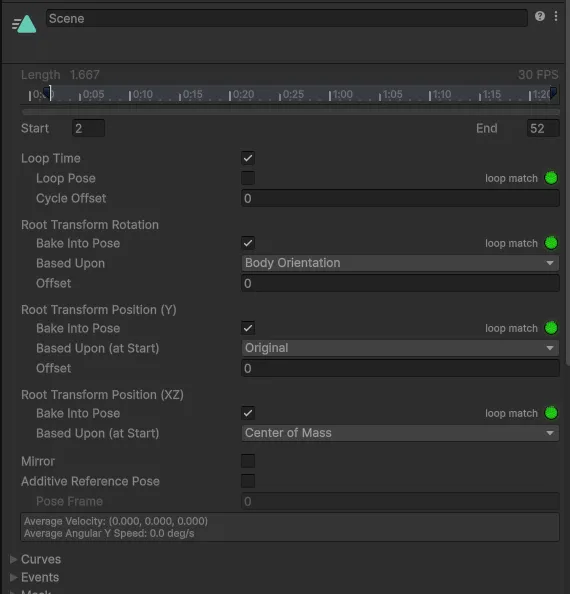
2) Animator Controller Usage
- The provided animations can be easily played and transitioned using Unity's Animator.
- If needed, you can add animations directly to the Animator Controller to configure them as a State Machine, allowing for rapid creation of cutscene flows such as Idle → Reaction → Shock.
Unity Foot Sliding Correction Guide
Foot Sliding Prevention Options
The provided FBX already has precise foot sliding corrections applied. However, Unity's automatic import compression may cause loss of minute keyframe data, leading to reoccurring sliding.
While it is generally fine to use as is, please apply the settings below if you wish to minimize sliding and ensure 100% stability.
① Adjust Animation Import Settings
- Animation → Compression → Off
◦ Disabling compression maintains the precision of the original keyframes intended by the creator, preventing minute sliding.
② Enable Foot IK in the Animator
- Select the relevant animation in the Animator, then Animation Tab → Check 'Foot IK'.
◦ Enabling Unity's Foot IK adds an auxiliary effect that naturally aligns the feet to the ground on top of the already corrected contact pose.
◦ This improves stability, especially during Idle or subtle movement actions.